Subscribe to immit jobs
Hand-picked jobs in Japan that need your Japanese. Written up in English, with visa and language details included. For N2+ learners.
How to Transcribe Japanese YouTube Videos for Study

You find a great Japanese YouTube video. A creator you like, talking at a normal speed about something you actually care about. You catch maybe 60 percent. So you do the thing every immersion learner does: pause, rewind, squint at a word, open a dictionary in another tab, type it in, lose your place, and start the sentence again. Twenty minutes later you have watched four minutes of video and remember none of the words you looked up.
The problem is not your listening. The problem is that the spoken audio is locked. You cannot hover over a sound. So the move is to turn that audio into Japanese text you can read, look up, and mine, and then get that text in front of a tool that handles the reading and the remembering in one place. Here is the workflow I use.
The fastest way to study Japanese from a YouTube video
The fastest way to transcribe a Japanese YouTube video for study is to turn on the video's Japanese subtitles (or pull the auto-generated transcript), then read that text with a popup dictionary that lets you save words to spaced-repetition flashcards. You do not need a paid transcription service for most videos, because YouTube already generates Japanese captions for a large share of uploads, and those captions render as on-screen text you can look up directly.
In five steps:
-
Turn on Japanese subtitles, or generate them if the video has none.
-
Get a cleaner transcript when the auto-captions are wrong or missing.
-
Read the transcript with instant hover lookup.
-
Save the words worth keeping in one click.
-
Review them with a built-in SRS so they actually stick.
Steps 1 and 2 produce the Japanese text. Steps 3 to 5 are where the studying happens, and where most workflows leak time.
What you need before you start
You need three things: a video with Japanese audio, a way to get the Japanese text out of it, and a tool that turns that text into vocabulary you remember.
For the text, your options range from free and instant (YouTube's own captions) to free and manual (a subtitle tool like asbplayer) to paid and automated (a transcription service or an integrated app). For the studying, you want a popup dictionary with built-in spaced repetition so you are not juggling a separate lookup tab and a separate flashcard app. I use immit for that part, and I will show where it fits below.
One note before you start: pick content slightly below your level for transcription study. A video where you already understand 70 to 80 percent leaves you a handful of unknown words per minute, which is a workable mining rate. A video where you understand 30 percent turns into a transcription chore, not reading practice.
Step 1: Turn on Japanese subtitles, or generate them
First, check whether the video already has Japanese subtitles. Click the CC button on the YouTube player and open the settings gear. If you see "Japanese" listed (not "Japanese (auto-generated)"), the creator uploaded real captions, and those are the most accurate text you can get.
If you only see "Japanese (auto-generated)," YouTube's speech recognition wrote them. Auto-generated Japanese captions are convenient and good enough to study from in many cases, but they have a known weakness: they frequently misread context-dependent kanji readings, and they drop or merge words when there is background noise or overlapping speakers.
To read the full transcript instead of caption-by-caption, open the "..." menu under the video and choose "Show transcript." YouTube prints the whole thing in a side panel with timestamps, which you can scroll, read, and copy. This is the fastest free transcription you will get, and for many videos it is all you need. Many learners also suggest cycling subtitles on and off as you rewatch, listening first and reading second, so you train your ear before you lean on the text.
Why auto-captions misread some Japanese words
Japanese is written with three character sets at once, kanji, hiragana, and katakana, and many words share a spelling or a sound while carrying different meanings. Automated transcription handles this poorly, which is the single biggest reason to review a transcript before you study from it.
A few examples of where auto-captioning, and even good learners, slip. 神, 紙, and 髪 are all read かみ but mean god, paper, and hair, so the right one depends entirely on the kanji the model picks. 地震 (じしん, earthquake) and 自身 (じしん, oneself) sound identical, so a speech-recognition model has to guess from context and sometimes guesses wrong. 病院 (びょういん, hospital) and 美容院 (びよういん, beauty salon) differ by one small vowel length that captioning regularly flattens. The transcript is a strong first draft. When a word looks wrong for the sentence, it often is, so check the reading before you save it as a flashcard.
Listening for these distinctions is a skill that immersion builds over time. The pitch-accent and vowel-length differences that separate near-homophones are subtle, and they are hard to hear early on. Practice saying similar words slowly to feel the difference, and let the transcript confirm the reading rather than replace your ear.
Step 2: Get a cleaner transcript when the captions are wrong or missing
Some videos have no Japanese captions at all, and some auto-captions are too rough to study from. You have a few free and paid ways to fix that.
Free subtitle tools for Japanese video
asbplayer (free, open source) is the immersion community's standard for syncing subtitle files to video and pulling text out for mining. If you can find a separate Japanese subtitle file for the video, asbplayer pairs it with the player and gives you clean, selectable text. It is a utility, not a course, and it does one job well.
Language Reactor (free, with a paid tier) adds a subtitle layer over YouTube and Netflix and shows the transcript alongside the video. It supports many languages rather than specializing in Japanese, so its lookups are general-purpose, but as a way to surface and scroll the transcript it works fine.
For a quick one-off, you can also play the audio and use your computer's native voice typing in a Japanese input mode to dictate a rough transcript. It is crude, but it works in a pinch when you have no captions and no subtitle file.
Transcribe Japanese audio when there are no subtitles
When you only have raw audio, a podcast rip, or a video with no subtitle track, run it through a dedicated transcription service. TurboScribe supports files up to ten hours and over ninety languages; Sonix gives you synchronized video playback next to the transcript for easy editing; Go Transcribe can translate the Japanese transcript into other languages if you want a translation alongside it. They are overkill for a video that already has captions, but they are the right tool when there is no text to start from. You can usually download the audio or video file first, then upload it to the service.
Accuracy on these tools is high when the audio is clean. AI models trained specifically for Japanese speech recognition report accuracy in the 90 to 99 percent range; Any2text claims around 98 percent on Japanese, and Scribe reports a word error rate near 3.1 percent. Those numbers describe clean studio audio, so treat them as a ceiling, not a guarantee.
Handling background noise and accuracy
The catch is that background noise, music, and overlapping speakers pull real-world accuracy below those headline figures. Most transcription tools handle moderate background noise on Japanese audio, but a noisy gaming stream or a street interview will produce more errors than a quiet talking-head video. Whatever route you take, plan a manual review pass, because the kanji-reading and word-segmentation issues from Step 1 apply to every automated Japanese transcriber, not just YouTube's. Use the transcript for comprehension, not as a finished translation, and the goal stays the same: Japanese text you can read at your own pace.
Step 3: Read the transcript with instant lookup
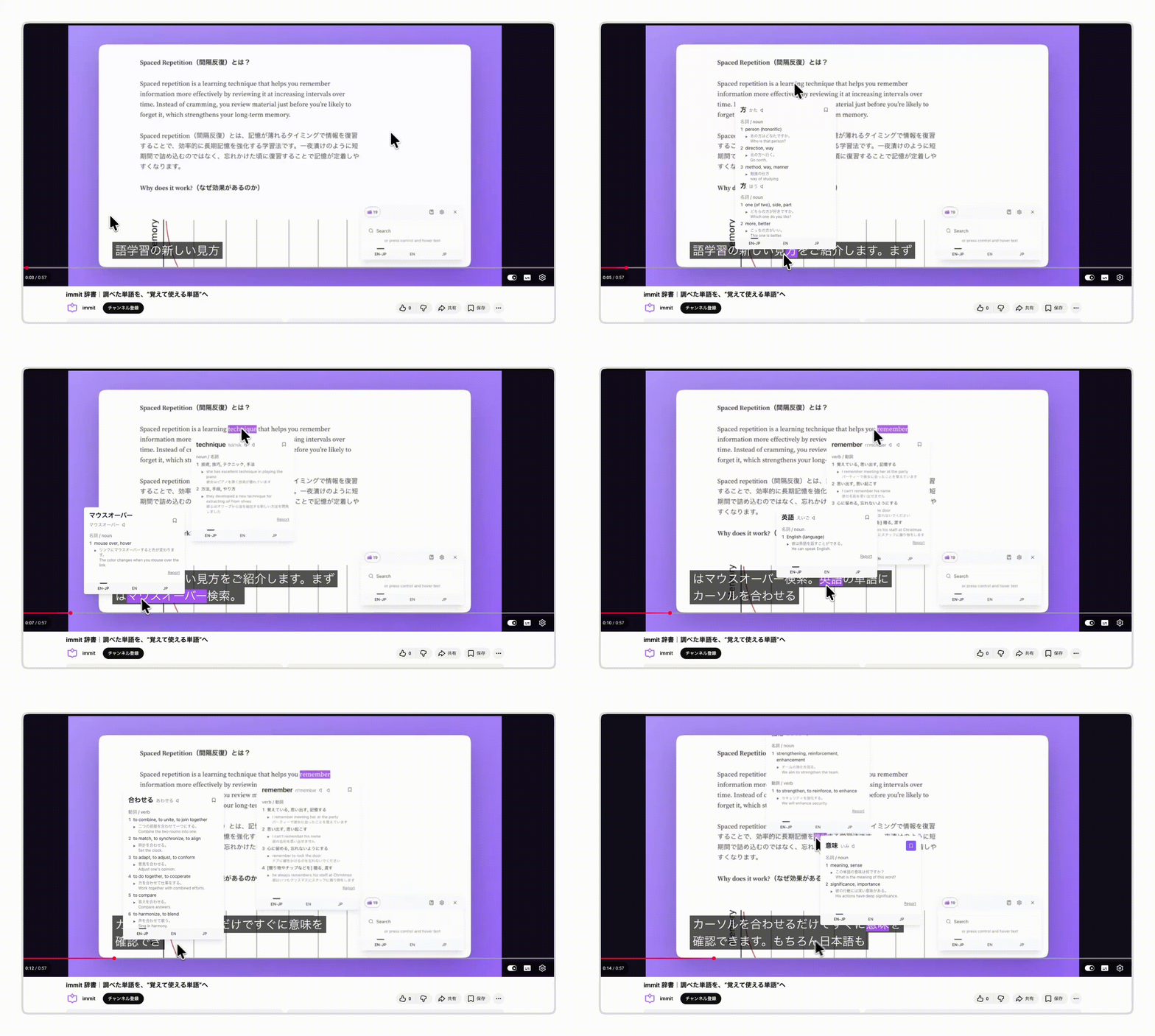 Now you have the text. This is the step that decides whether the whole exercise is worth it, because reading a transcript you cannot decode is no better than watching a video you cannot follow.
The slow version is the tab-switching loop: copy a word, paste it into Jisho, read the definition, switch back, find your place. The fast version is hover lookup. With immit installed as a Chrome extension, you point at a word in the transcript and the reading, part of speech, definition, and an example sentence appear right there on the page, with a button to hear it pronounced. No copy-paste, no second tab.
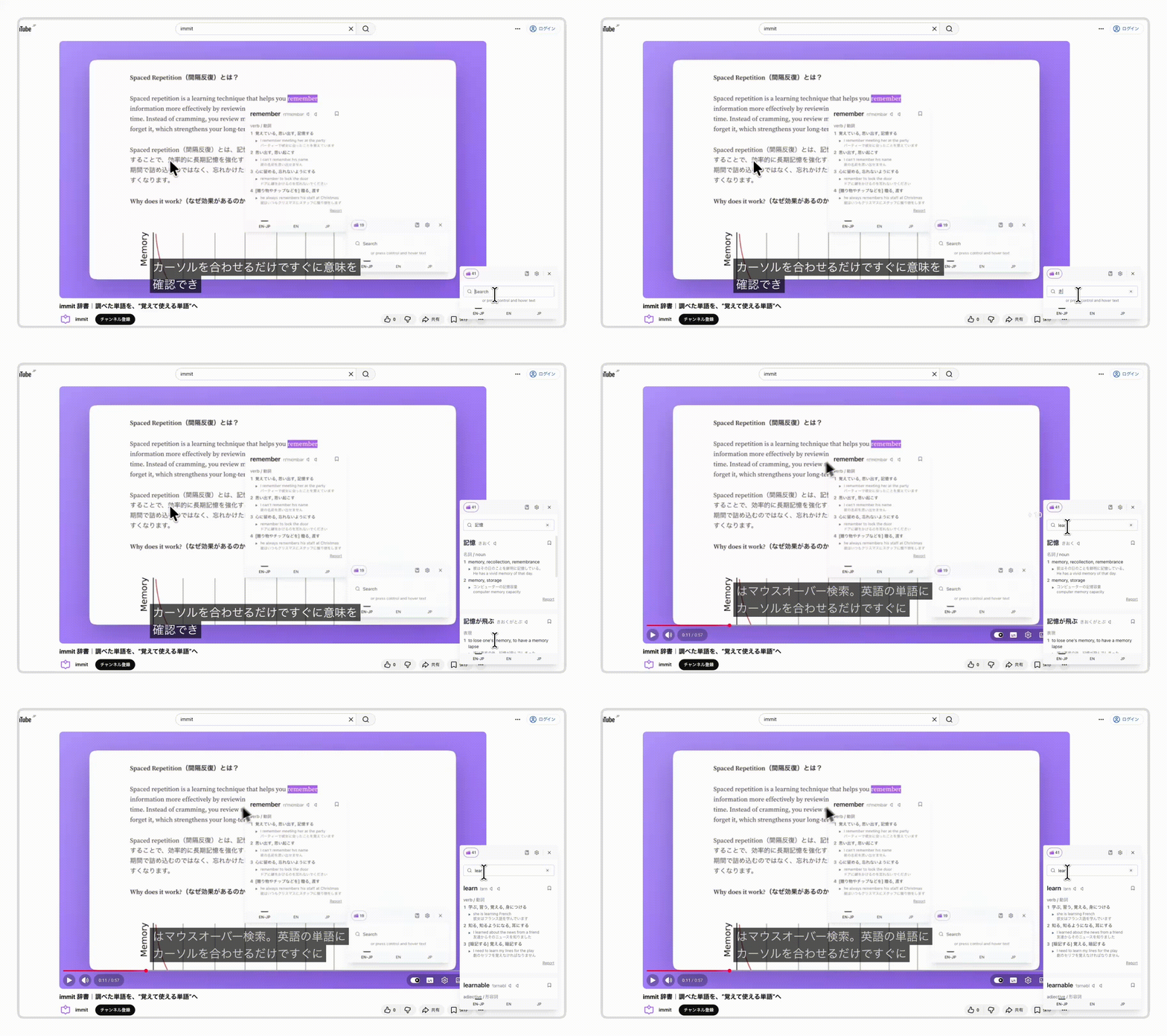 The useful part for YouTube specifically: immit's hover lookup works directly on YouTube's caption text, not just on a copied-out transcript. You can leave the video playing, pause on a line you did not catch, and look up the word right there on the subtitle. If you prefer to keep a dictionary open while you read, the Pocket Dictionary pins a search box to the corner of the page so you can type in a word without leaving the transcript at all.
If you want this lookup layer, you can add immit free with no account. There is also an optional desktop app for reviewing outside the browser.
Step 4: Save the words worth keeping
Looking a word up once does almost nothing for memory. You have proven that to yourself every time you re-looked-up the same word three days in a row. The point of mining a transcript is to keep the words that matter and let the rest go.
When a word is worth keeping, save it in one click. In immit, the bookmark icon in the popup drops the word into your personal deck with its definition, part of speech, example, pronunciation, and the sentence it came from already attached. Everything you mine from a video, a web article, or a caption lands in the same single deck, so you are not maintaining separate piles per source.
Be selective. A ten-minute video does not need forty cards. Save the words that are common enough that you will see them again, and skip the one-off proper nouns and hyper-specific jargon unless that jargon is the reason you are watching.
Step 5: Review with a built-in SRS so it sticks
The last step is the one that turns a transcript into actual vocabulary. Spaced repetition shows you each word right before you would forget it, so a handful of minutes a day holds words you would otherwise lose. Pairing immersion in Japanese media with active review is what makes vocabulary retention stick, rather than watching video after video and keeping none of it.
This is usually where the immersion stack fragments. The classic setup is Yomitan for lookup plus Anki for review, connected with AnkiConnect, which is powerful but takes setup time and ongoing card maintenance. The whole reason I switched our own workflow over was to stop running two tools and a bridge between them. immit's built-in FSRS schedules every word you saved with no deck configuration and no separate app. You review in flip mode (see the word, recall it, then mark whether you got it) or type mode (type the answer and let immit check it). There is no card cap, and you choose how long each review session runs: 5, 15, or 30 minutes, or everything that is due.
So the full loop for one video is: turn on subtitles, read the transcript with hover lookup, save the words worth keeping, and review them the next day. Same tool from the lookup to the flashcard, no export step in the middle.
Common mistakes
A few things that quietly waste time:
Trusting auto-captions on readings. Auto-generated Japanese captions are a first draft. When a kanji reading looks wrong for the context, it often is. Verify before you save a card with a bad reading, because a wrong reading memorized is worse than no card.
Mining everything. Saving every unknown word from a fast video buries you in review debt within a week. Cap yourself at the words that recur.
Studying content that is too hard. If you are looking up every third word, you are decoding, not reading. Drop to easier content and the transcription workflow starts paying off.
Reviewing in a different app than you mined in. Every tool switch between lookup, save, and review is a place to lose momentum. Keeping all three in one place is the single biggest time saver here.
What to use right now
If you want the simplest free path: turn on YouTube's Japanese captions, use "Show transcript" to read the whole thing, and run a popup dictionary over the text so lookup and saving happen in place. For the lookup-save-review part, immit is free, needs no account, and works offline, with the SRS built in so you are not also setting up Anki.
Use asbplayer when a video has no captions and you can find a separate subtitle file. Use a transcription service like TurboScribe or Sonix when you are working from raw audio or a podcast with no subtitle track, and plan to review the output. Consider Migaku if you also want a structured course and integrated subtitle handling in one paid app. Whatever you use to get the text, the studying is the same: read it, mine the words that matter, and review them before you forget.
For the next step after this, the companion piece on the Japanese subtitle reading workflow goes deeper on Netflix and YouTube subtitle reading, and the sentence mining guide covers how to turn mined words into durable vocabulary.
FAQ
What is the best way to transcribe a Japanese YouTube video for studying? The best way for most videos is to use YouTube's own Japanese subtitles. Open the video's "..." menu, choose "Show transcript," and read the timestamped text with a popup dictionary so you can look up and save words in place. If the video has no captions, pair it with a free subtitle tool like asbplayer, or run the audio through a transcription service for videos with no subtitle track. The transcription itself is the easy part. The studying is what makes it worthwhile, so use a tool that combines lookup and spaced-repetition review.
Are YouTube's auto-generated Japanese captions accurate enough to study from? Often yes, with a caveat. Auto-generated Japanese captions are good enough for the general meaning and for most common vocabulary, but they regularly misread context-dependent kanji readings and can drop words during background noise or fast speech. A word like かみ can mean god (神), paper (紙), or hair (髪) depending on the kanji, and the model does not always pick the right one. Treat the captions as an accurate-enough first draft and verify any reading that looks wrong for the sentence before you save it as a flashcard.
How do I get Japanese subtitles from a YouTube video that has none? You have two main options. The free, manual route is to find a separate Japanese subtitle file for the video and sync it with a tool like asbplayer. The automated route is to download the audio and run it through a speech-recognition transcription service such as TurboScribe, Sonix, or Veed, which return an editable transcript in a range of formats. Both still need a quick manual review for Japanese, because automated transcribers make kanji-reading and word-segmentation errors.
How accurate is automatic Japanese transcription? On clean audio, modern Japanese speech-recognition models report accuracy in the 90 to 99 percent range, with some services claiming around 98 percent and word error rates near 3 percent. Real-world results are lower, because background noise, music, and multiple speakers all reduce accuracy. For studying, that is fine as long as you review the output and confirm any reading or word that looks off before you turn it into a flashcard.
Can I mine vocabulary from a YouTube transcript into flashcards? Yes, and it is the main reason to make the transcript in the first place. Read the transcript with a popup dictionary, and when you hit a word worth keeping, save it to a spaced-repetition deck. With immit, the bookmark icon in the lookup popup saves the word with its reading, definition, example, and pronunciation, and the built-in SRS schedules the review. Be selective about which words you save so your daily review stays manageable.
How do I look up and remember words from a Japanese transcript without setting up Yomitan and Anki separately? Use a single tool that does both lookup and review. The traditional immersion setup connects Yomitan for hover lookup to Anki for spaced repetition through AnkiConnect, which works but takes setup and ongoing card maintenance. immit combines hover lookup, one-click save, and built-in FSRS review in one extension with no account and no configuration, so the word you look up in a transcript is the same word you review the next day, with no export step in between.
Does watching Japanese YouTube with transcripts actually improve comprehension? Yes, when you read actively rather than passively. Pairing the audio with a transcript lets you connect a sound you half-recognized to the word that produced it, which is exactly the gap that pure listening leaves open. Learners on communities like r/LearnJapanese consistently report that reading subtitles while listening, then mining the new words, builds both reading and listening comprehension faster than watching raw. The key is to mine selectively and review what you save, so the words move into long-term memory instead of scrolling past.
Does immit transcribe videos? No. immit is not a transcription tool, and it does not generate subtitles or rip audio. It is the lookup and spaced-repetition layer for the Japanese text you already have. Once you have a transcript or YouTube's captions on screen, immit handles the hover lookup, the one-click save, and the review. For YouTube specifically, its hover lookup works directly on the caption text on the page.